> ## Documentation Index
> Fetch the complete documentation index at: https://docs.muna.ai/llms.txt
> Use this file to discover all available pages before exploring further.
# Introduction
> Automated infrastructure for AI inference.
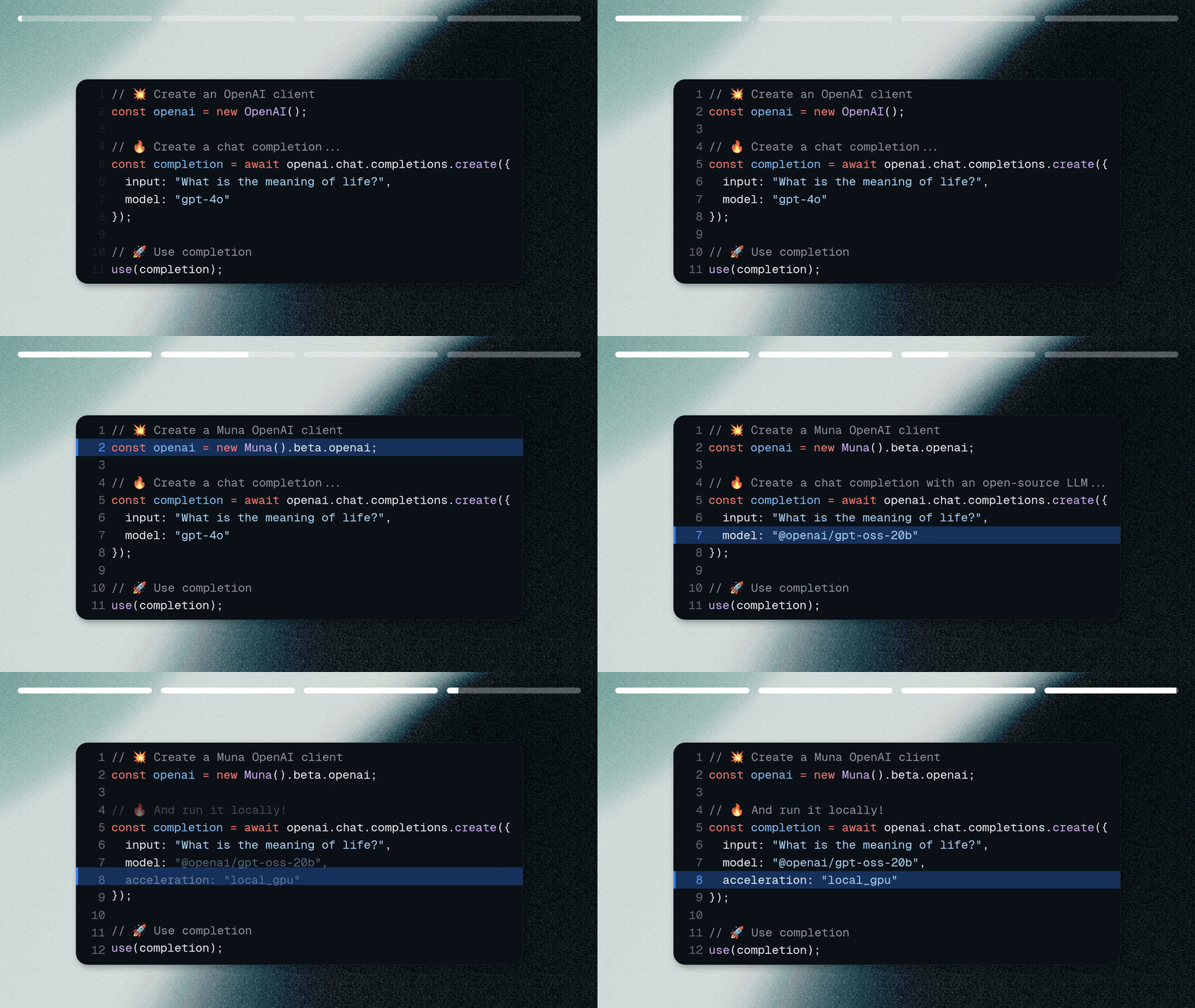 Run inference with an OpenAI-compatible client, and optimize for cost, latency,
or throughput with one line of code.
## Installing Muna
We provide SDKs for common development frameworks:
```bash JavaScript icon="js" theme={null}
# Run this in Terminal
$ npm install muna
```
```bash Python icon="python" theme={null}
# Run this in Terminal
$ pip install --upgrade muna
```
```bash React Native icon="react" theme={null}
# Run this in Terminal
$ npm install @muna/expo
```
```yaml Flutter icon="flutter" theme={null}
# Add this to your `pubspec.yml`
dependencies:
muna: 0.0.2
```
```kt Android icon="android" theme={null}
// Add this to your `build.gradle` or `build.gradle.kts` file
dependencies {
implementation("ai.muna:muna:0.0.10")
}
```
```swift iOS focus={4-5,8-9} icon="swift" theme={null}
let package = Package(
name: "MySwiftPackage",
dependencies: [
// Add the package to your dependencies
.package(url: "https://github.com/muna-ai/muna-swift.git", from: "0.0.2"),
],
targets: [
// Then add `Muna` as a dependency to your target
.target(name: "MySwitPackage", dependencies: ["Muna"]),
]
)
```
```json Unity focus={3-9,11} icon="unity" theme={null}
// Add this to your `Packages/manifest.json` file
{
"scopedRegistries": [
{
"name": "Muna",
"url": "https://registry.npmjs.com",
"scopes": ["ai.muna"]
}
],
"dependencies": {
"ai.muna.muna": "0.0.48"
}
}
```
Most of our client SDKs are open-source. Star them [on GitHub](https://github.com/muna-ai)!
## Run your First Inference
[Generate an access key](https://muna.ai/settings/developer), then create a chat completion locally with [`@openai/gpt-oss-20b`](https://muna.ai/@openai/gpt-oss-20b).
```ts JavaScript icon="js" theme={null}
import { Muna } from "muna"
// 💥 Create an OpenAI client
const openai = new Muna({ accessKey: "..." }).beta.openai;
// 🔥 Create a chat completion
const completion = await openai.chat.completions.create({
model: "@openai/gpt-oss-20b",
messages: [{ role: "user", content: "What is the capital of France?" }]
});
// 🚀 Print the result
console.log(completion.choices[0]);
```
```py Python icon="python" theme={null}
from muna import Muna
# 💥 Create an OpenAI client
openai = Muna(access_key="...").beta.openai
# 🔥 Create a chat completion
completion = openai.chat.completions.create(
model="@openai/gpt-oss-20b",
messages=[{ "role": "user", "content": "What is the capital of France?" }]
)
# 🚀 Print the result
print(completion.choices[0].message)
```
Our OpenAI-style client in `muna.beta.openai` that has the same interface
as the official OpenAI client. This allows you to **migrate in two lines of code**.
The first time you run the code above might take a few minutes, because we have to download the (rather large) model weights. Subsequent runs should take a few seconds.
## Run on a Datacenter GPU
Muna's central feature is the ability to choose where inference runs, on each request. Let's run
the same model on a datacenter GPU:
```ts JavaScript icon="js" focus={1,5} theme={null}
// 🔥 Create a chat completion with a datacenter GPU
const completion = await openai.chat.completions.create({
model: "@openai/gpt-oss-20b",
messages: [{ role: "user", content: "What is the capital of France?" }],
acceleration: "remote_a100"
});
```
```py Python icon="python" focus={1,5} theme={null}
# 🔥 Create a chat completion with a datacenter GPU
completion = openai.chat.completions.create(
model="@openai/gpt-oss-20b",
messages=[{ "role": "user", "content": "What is the capital of France?" }],
acceleration="remote_a100"
)
```
## Next Steps
With Muna, you control which model to run, and where to run it, with zero infrastructure setup.
Explore some popular models you can use immediately.
Come learn more and ask questions in our community Slack.
Run inference with an OpenAI-compatible client, and optimize for cost, latency,
or throughput with one line of code.
## Installing Muna
We provide SDKs for common development frameworks:
```bash JavaScript icon="js" theme={null}
# Run this in Terminal
$ npm install muna
```
```bash Python icon="python" theme={null}
# Run this in Terminal
$ pip install --upgrade muna
```
```bash React Native icon="react" theme={null}
# Run this in Terminal
$ npm install @muna/expo
```
```yaml Flutter icon="flutter" theme={null}
# Add this to your `pubspec.yml`
dependencies:
muna: 0.0.2
```
```kt Android icon="android" theme={null}
// Add this to your `build.gradle` or `build.gradle.kts` file
dependencies {
implementation("ai.muna:muna:0.0.10")
}
```
```swift iOS focus={4-5,8-9} icon="swift" theme={null}
let package = Package(
name: "MySwiftPackage",
dependencies: [
// Add the package to your dependencies
.package(url: "https://github.com/muna-ai/muna-swift.git", from: "0.0.2"),
],
targets: [
// Then add `Muna` as a dependency to your target
.target(name: "MySwitPackage", dependencies: ["Muna"]),
]
)
```
```json Unity focus={3-9,11} icon="unity" theme={null}
// Add this to your `Packages/manifest.json` file
{
"scopedRegistries": [
{
"name": "Muna",
"url": "https://registry.npmjs.com",
"scopes": ["ai.muna"]
}
],
"dependencies": {
"ai.muna.muna": "0.0.48"
}
}
```
Most of our client SDKs are open-source. Star them [on GitHub](https://github.com/muna-ai)!
## Run your First Inference
[Generate an access key](https://muna.ai/settings/developer), then create a chat completion locally with [`@openai/gpt-oss-20b`](https://muna.ai/@openai/gpt-oss-20b).
```ts JavaScript icon="js" theme={null}
import { Muna } from "muna"
// 💥 Create an OpenAI client
const openai = new Muna({ accessKey: "..." }).beta.openai;
// 🔥 Create a chat completion
const completion = await openai.chat.completions.create({
model: "@openai/gpt-oss-20b",
messages: [{ role: "user", content: "What is the capital of France?" }]
});
// 🚀 Print the result
console.log(completion.choices[0]);
```
```py Python icon="python" theme={null}
from muna import Muna
# 💥 Create an OpenAI client
openai = Muna(access_key="...").beta.openai
# 🔥 Create a chat completion
completion = openai.chat.completions.create(
model="@openai/gpt-oss-20b",
messages=[{ "role": "user", "content": "What is the capital of France?" }]
)
# 🚀 Print the result
print(completion.choices[0].message)
```
Our OpenAI-style client in `muna.beta.openai` that has the same interface
as the official OpenAI client. This allows you to **migrate in two lines of code**.
The first time you run the code above might take a few minutes, because we have to download the (rather large) model weights. Subsequent runs should take a few seconds.
## Run on a Datacenter GPU
Muna's central feature is the ability to choose where inference runs, on each request. Let's run
the same model on a datacenter GPU:
```ts JavaScript icon="js" focus={1,5} theme={null}
// 🔥 Create a chat completion with a datacenter GPU
const completion = await openai.chat.completions.create({
model: "@openai/gpt-oss-20b",
messages: [{ role: "user", content: "What is the capital of France?" }],
acceleration: "remote_a100"
});
```
```py Python icon="python" focus={1,5} theme={null}
# 🔥 Create a chat completion with a datacenter GPU
completion = openai.chat.completions.create(
model="@openai/gpt-oss-20b",
messages=[{ "role": "user", "content": "What is the capital of France?" }],
acceleration="remote_a100"
)
```
## Next Steps
With Muna, you control which model to run, and where to run it, with zero infrastructure setup.
Explore some popular models you can use immediately.
Come learn more and ask questions in our community Slack.